การจัดเรียงหมวดหมู่สินค้าในระบบร้านยา tPHARM
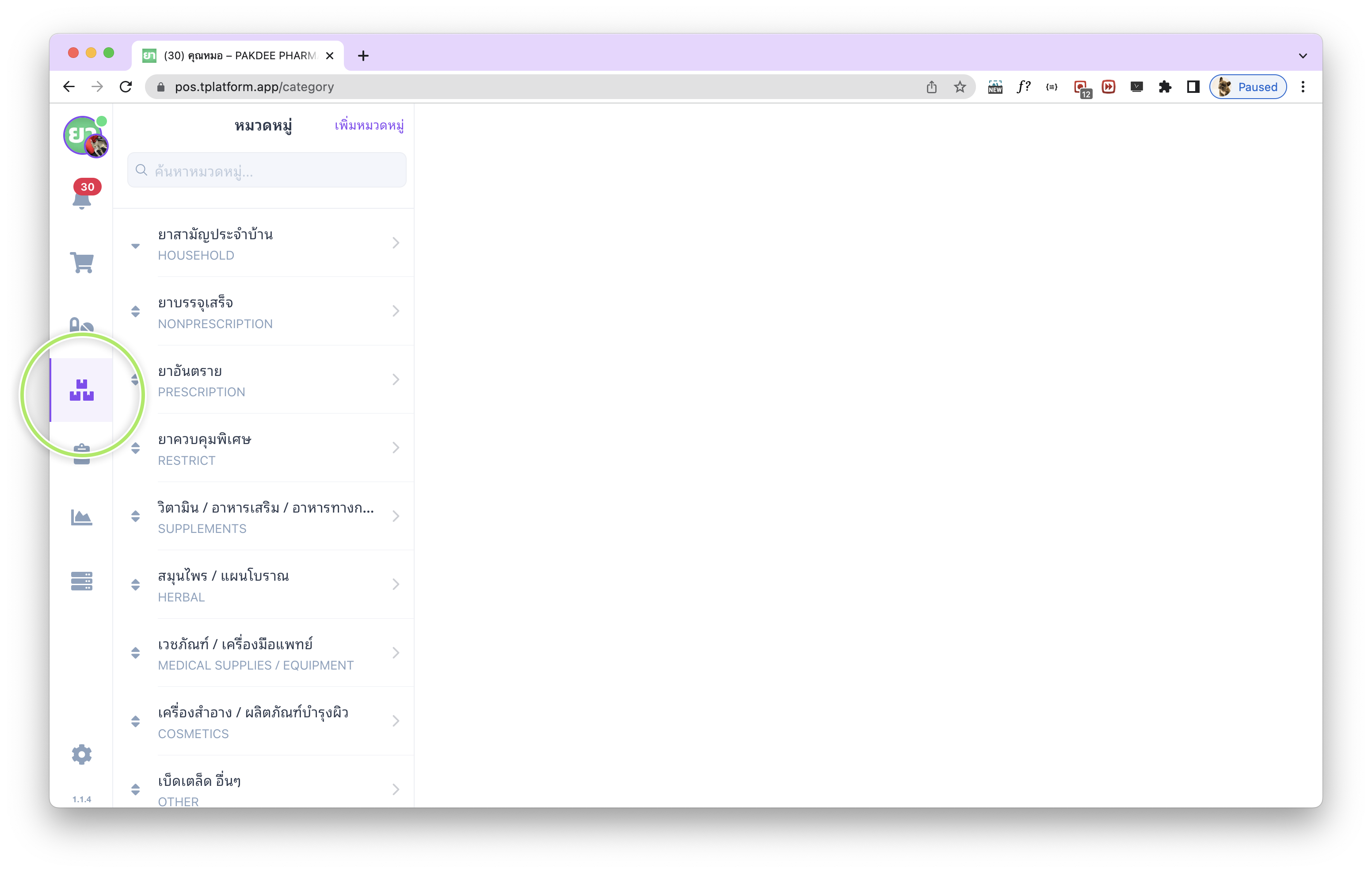
การจัดเรียงหมวดหมู่สินค้าของร้านค้าในระบบร้านยา สามารถจัดการได้จากเมนู หมวดหมู่สินค้า ที่อยู่ในแถบเมนูทางด้านซ้าย โดยร้านค้าสามารถ เพิ่ม แก้ไข และจัดเรียงลำดับหมวดหมู่สินค้า ได้เองทั้งหมด ซึ่งในหลายกรณี ร้านค้ามีสินค้าที่อยู่ในหมวดหมู่สินค้าต่าง ๆ กัน แต่เป็นสินค้าขายดี หรือมีการจำหน่ายเป็นประจำ ก็สามารถสร้างหมวดหมู่ขึ้นมาใหม่ เช่น “สินค้าขายดี” แล้วจัดให้หมวดหมู่นี้อยู่ลำดับบนสุด เพื่อให้ระบบแสดงสินค้าเหล่านี้ได้อย่างรวดเร็ว และช่วยให้การค้นหาสินค้าและการบริหารสต็อกสินค้ามีประสิทธิภาพมากยิ่งขึ้น
หมวดหมู่พื้นฐานในระบบร้านขายยาทีฟาร์ม
โดยเริ่มต้น ระบบจัดการร้านขายยาทีฟาร์ม tPHARM ได้เตรียมหมวดหมู่พื้นฐานของร้านขายยาไว้ให้พร้อมใช้งานแล้ว รวมทั้งหมด 16 หมวดหมู่สินค้า ดังนี้
- ยาสามัญประจำบ้าน
- ยาบรรจุเสร็จ
- ยาอันตราย
- ยาควบคุมพิเศษ
- วิตามิน / อาหารเสริม / อาหารทางการแพทย์
- สมุนไพร / แผนโบราณ
- เวชภัณฑ์ / เครื่องมือแพทย์
- เครื่องสำอาง / ผลิตภัณฑ์บำรุงผิว
- เบ็ดเตล็ด อื่นๆ
- ยาใช้ภายนอก
- ยาใช้เฉพาะที่
- ยาใช้ภายใน
- ยาแผนปัจจุบัน
- ยาแผนโบราณ
- ยาฉีด
- วัตถุอันตราย
หากร้านค้าต้องการ เพิ่มหมวดหมู่สินค้าเอง หรือแก้ไขหมวดหมู่ ให้เหมาะกับรูปแบบการจำหน่าย เช่น หมวดหมู่ “สินค้าขายดี”, “สินค้าโปรโมชั่น”, หรือหมวดหมู่เฉพาะทางอื่น ๆ จะต้องใช้งานผ่านแพ็กเกจ Standard โดยสามารถอ่านรายละเอียดเพิ่มเติมได้ที่ https://tpharm.app/pricing
วิธีจัดเรียงลำดับหมวดหมู่สินค้าในระบบร้านยา
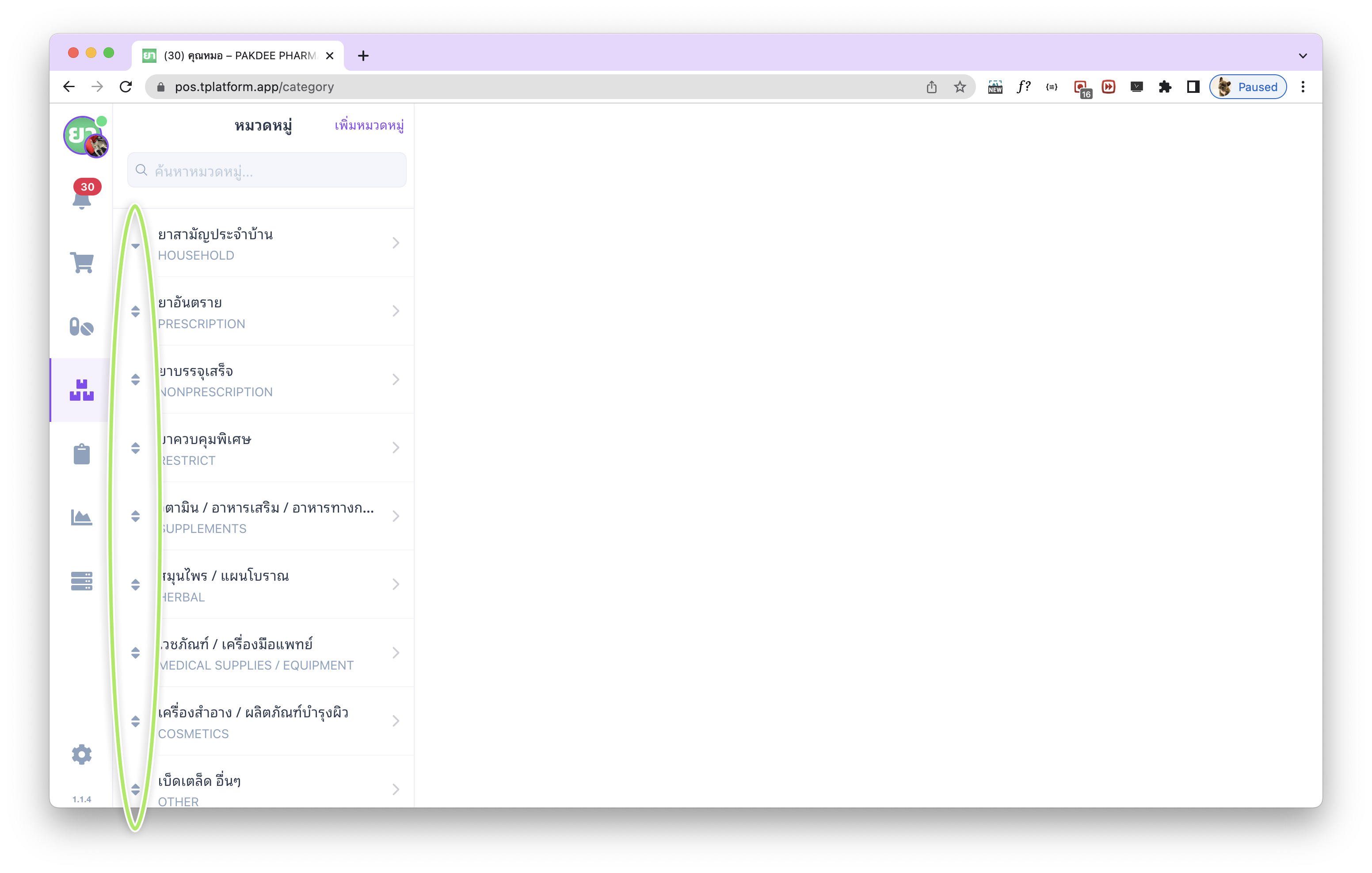
วิธีจัดเรียงลำดับหมวดหมู่สินค้าในระบบร้านยา tPHARM ทำได้ง่าย ๆ จากหน้าหมวดหมู่สินค้า โดยที่ด้านซ้ายมือจะมีรายการหมวดหมู่ทั้งหมดแสดงอยู่ พร้อม สัญลักษณ์ลูกศร ด้านหน้าชื่อหมวดหมู่สินค้า ซึ่งสามารถใช้ในการเลื่อน/ลากหมวดหมู่เพื่อจัดลำดับใหม่ได้ทันที เช่น เลื่อนหมวด “สินค้าขายดี” ขึ้นมาอยู่ด้านบนสุดเพื่อให้ใช้งานได้สะดวกกับหน้าขาย และช่วยให้การบริหารสต็อกสินค้าทำได้คล่องตัวมากยิ่งขึ้น
เพียงใช้เมาส์ เลื่อน/คลิก/ลาก ที่สัญลักษณ์ลูกศรขึ้นหรือลง ระบบจะดำเนินการบันทึกลำดับหมวดหมู่สินค้าให้อัตโนมัติ ไม่ต้องกดบันทึกเพิ่มเติม ช่วยให้การจัดหน้าและการค้นหาสินค้าในระบบร้านยาเป็นระเบียบและใช้งานง่ายขึ้นทั้งในมุมมองเจ้าของร้านและพนักงานหน้าร้าน
Sorting Product Categories in the tPHARM Pharmacy System
In the tPHARM pharmacy POS system, product categories can be fully managed from the Product Categories menu on the left sidebar. Store owners can add, edit, and reorder categories to better match their workflow. For example, if certain items from different therapeutic or product groups are bestsellers, you can create a category called “Best-selling Products”, move it to the top of the list, and quickly access those items during sales. This greatly improves search efficiency and overall stock management.
Default Pharmacy Categories in tPHARM
By default, the tPHARM pharmacy management system comes with 16 predefined pharmacy-related categories, designed to fit common drugstore operations in Thailand:
- Household medicines
- Ready-packed medicines
- Dangerous drugs
- Specially controlled drugs
- Vitamins / Supplements / Medical nutrition
- Herbal / Traditional medicines
- Medical supplies / Medical devices
- Cosmetics / Skincare products
- Miscellaneous items
- External-use medicines
- Topical medicines
- Internal-use medicines
- Modern medicines
- Traditional medicines
- Injectable medicines
- Hazardous substances
If your pharmacy needs custom categories (for example “Best-selling products”, “Promotions”, or specific clinical groups), you can unlock this feature with the Standard package. More details are available at https://tpharm.app/pricing.
How to Reorder Product Categories for Faster Workflow
On the Product Categories screen, all categories are listed on the left. In front of each category name, you will see a small drag handle (arrow icon). You can use this handle to drag and drop categories up or down to reorder them. For example, you might want to move “Best-selling Products” or “Promotion Items” to the top so your staff can access them more quickly during sales, improving both speed and stock management in the pharmacy.
Simply click, hold, and drag the category using the arrow handle to the desired position. The system will automatically save the new order without requiring an extra save button. This helps keep your pharmacy POS screen clean, organized, and optimized for fast product search and better day-to-day inventory management.