การตั้งค่าภาษีมูลค่าเพิ่ม (VAT 7%) ในระบบทีฟาร์ม tPHARM POS
สำหรับร้านค้าที่ได้จดทะเบียนภาษีมูลค่าเพิ่ม (VAT 7%) สามารถตั้งค่าให้ระบบแสดงข้อมูลภาษีมูลค่าเพิ่มในส่วนท้ายของใบเสร็จรับเงินได้ โดยร้านค้าสามารถกำหนดรูปแบบการคำนวณ VAT 7% ได้ 2 แบบ คือ
- ราคาขายสินค้ารวมภาษีมูลค่าเพิ่มแล้ว (VAT ใน, Including VAT)
- ราคาขายสินค้ายังไม่รวมภาษีมูลค่าเพิ่ม (VAT นอก, Excluding VAT)
ทั้งสองรูปแบบจะมีวิธีการคำนวณภาษีมูลค่าเพิ่มที่แตกต่างกัน และมีผลต่อยอดรวมสุทธิที่แสดงในระบบและบนใบเสร็จรับเงินของลูกค้า
วิธีเข้าเมนูตั้งค่าการคำนวณ VAT 7% และการปัดเศษทศนิยม
ร้านค้าสามารถตั้งค่าการคำนวณ VAT 7% และการปัดเศษทศนิยมได้จากเมนูการตั้งค่าหลักของระบบ โดยมีขั้นตอนดังนี้
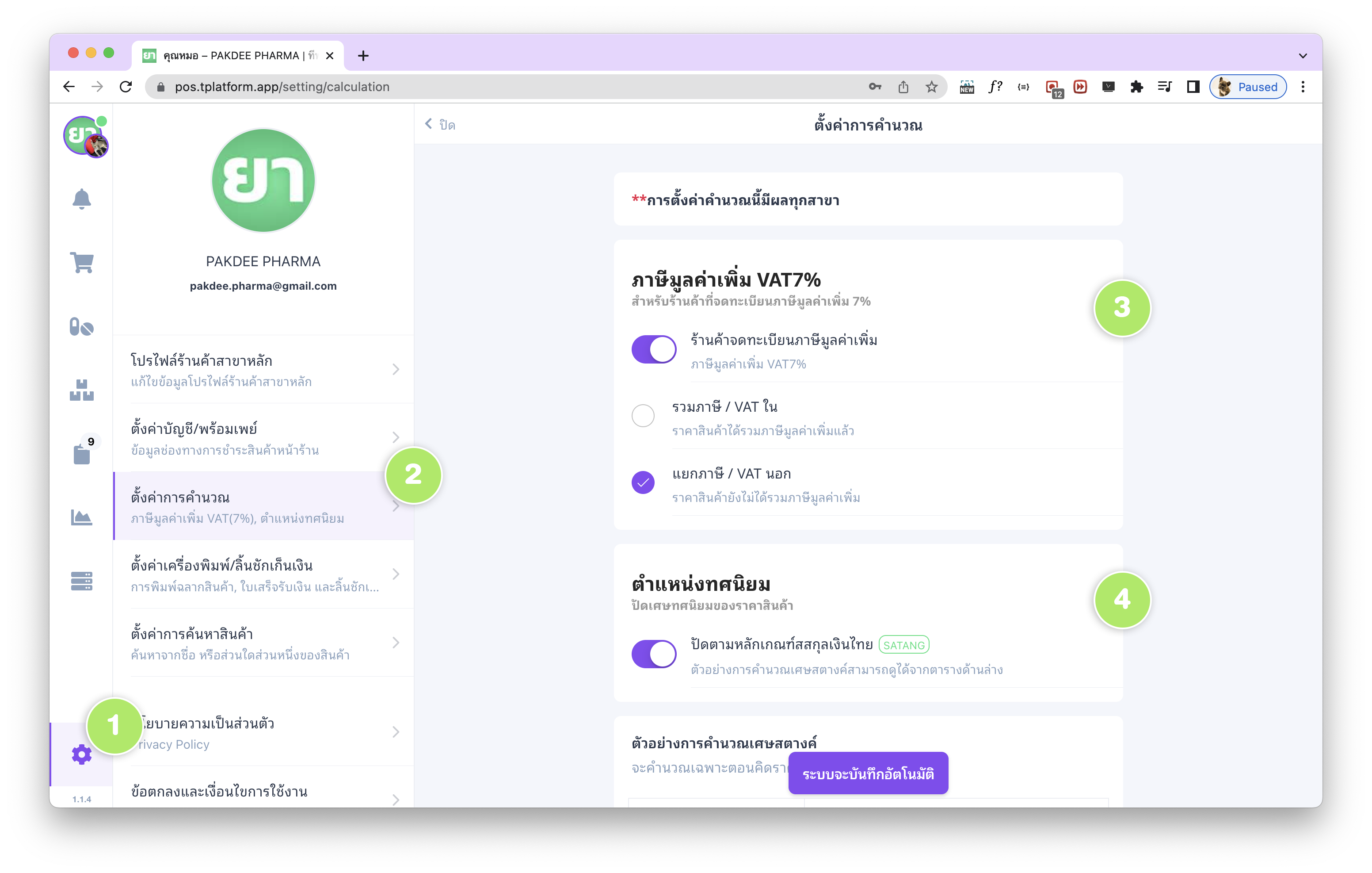
- ไปที่เมนู “การตั้งค่า” (ไอคอนรูปฟันเฟือง มุมซ้ายล่างสุดของหน้าจอ)
- เลือกเมนู “ตั้งค่าการคำนวณ – ภาษีมูลค่าเพิ่ม VAT(7%), ตำแหน่งทศนิยม”
- กำหนดรูปแบบการคำนวณ ภาษีมูลค่าเพิ่ม VAT 7% (VAT ใน หรือ VAT นอก)
- กำหนดรูปแบบการปัดเศษทศนิยม ตามหลักเกณฑ์ของสกุลเงินบาท (สตางค์) – สามารถอ่านรายละเอียดเพิ่มเติมเกี่ยวกับการปัดเศษสตางค์ได้จาก ที่นี่
ตัวอย่างการคำนวณแบบ “รวมภาษี / VAT ใน” (Including VAT)
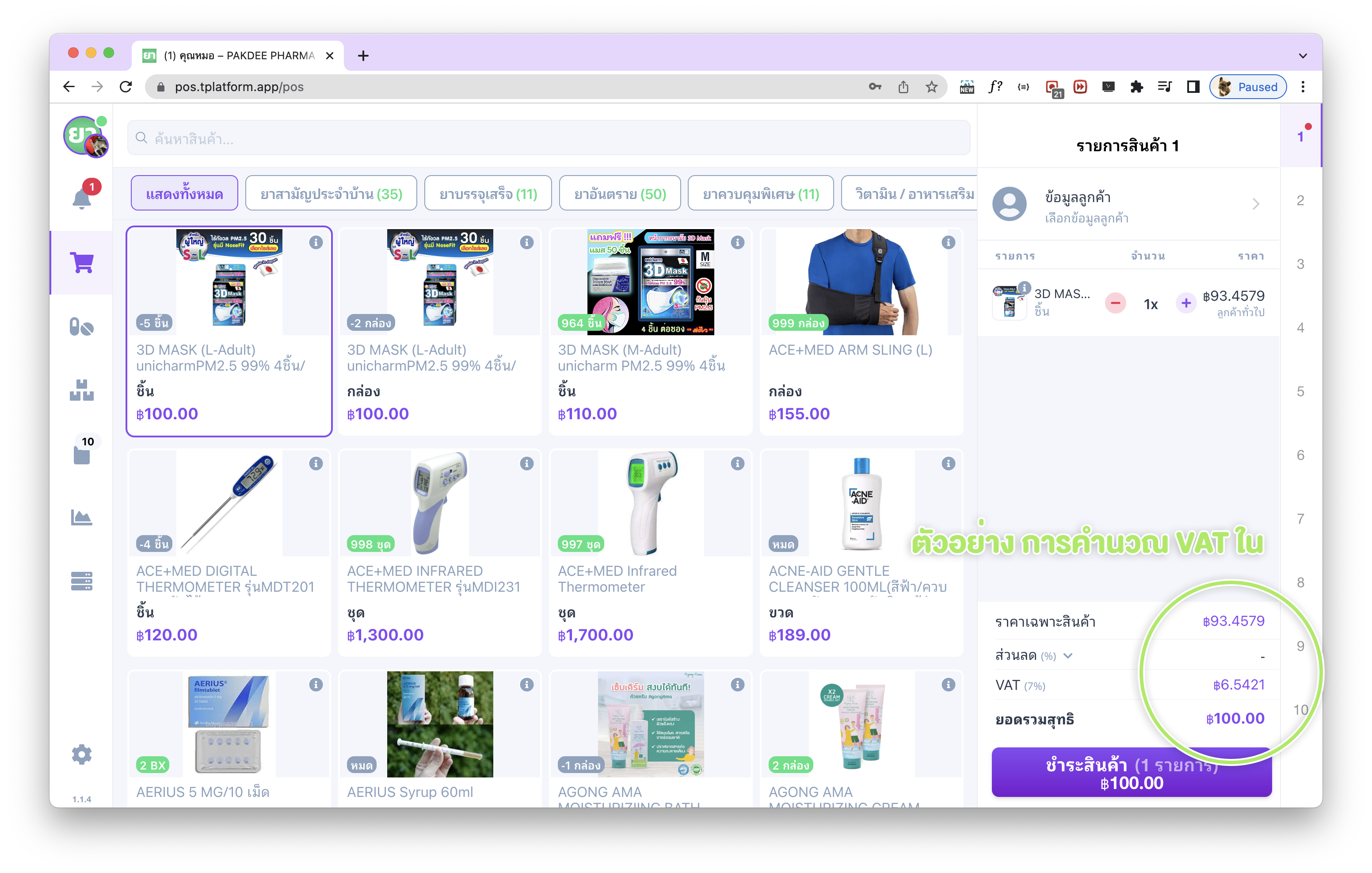
กรณีเลือกตั้งค่าเป็น “รวมภาษี / VAT ใน – ราคาสินค้าได้รวมภาษีมูลค่าเพิ่มแล้ว” ระบบจะถือว่าราคาขายหน้าร้านเป็นราคาที่ รวม VAT 7% แล้ว ตัวอย่างเช่น:
- ราคาขายสินค้า (รวม VAT) = 100 บาท
- สูตรถอดภาษีมูลค่าเพิ่ม:
VAT = ราคาขายสินค้า - (ราคาขายสินค้า / 1.07) - แทนค่า: 100 – (100 / 1.07) = 6.5421 บาท (ยังไม่ปัดเศษ)
- มูลค่าสินค้าก่อน VAT = 100 – 6.5421 ≈ 93.458 บาท
ระบบทีฟาร์มจะแสดงมูลค่าสินค้าก่อนภาษี และมูลค่าภาษี VAT 7% ตามกติกาการปัดเศษทศนิยมที่ร้านค้าตั้งค่าไว้ และแสดงตัวเลขดังกล่าวในแถบด้านขวา (ตะกร้าสินค้า) รวมถึงในส่วนท้ายของใบเสร็จรับเงิน
ตัวอย่างการคำนวณแบบ “แยกภาษี / VAT นอก” (Excluding VAT)
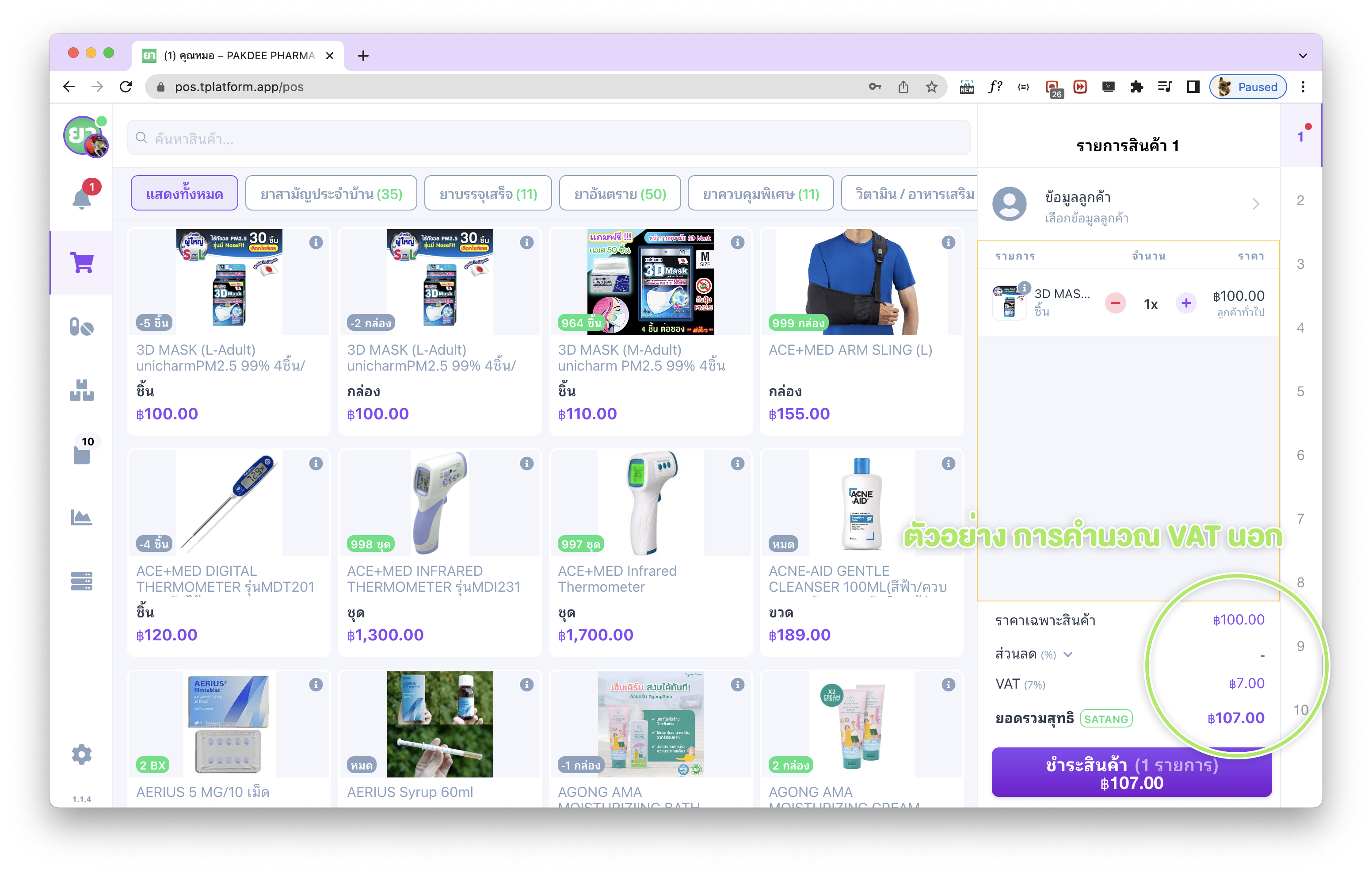
ในกรณีตั้งค่าเป็น “แยกภาษี / VAT นอก – ราคาสินค้ายังไม่ได้รวมภาษีมูลค่าเพิ่ม” ระบบจะถือว่าเป็นราคาสินค้าก่อน VAT และจะคำนวณ VAT เพิ่มเข้าไปทีหลัง ตัวอย่างเช่น:
- ราคาขายสินค้า (ยังไม่รวม VAT) = 100 บาท
- สูตรคำนวณ VAT:
VAT = ราคาขายสินค้า * 0.07 - แทนค่า: 100 * 0.07 = 7 บาท
- ยอดรวมสุทธิ (รวม VAT แล้ว) = 100 + 7 = 107 บาท
ในหน้าตะกร้าสินค้า ระบบจะแสดงราคาสินค้าก่อน VAT, มูลค่า VAT 7% และยอดรวมสุทธิแยกให้ชัดเจน ทั้งในหน้าขายและในใบเสร็จรับเงินของลูกค้า
การตั้งค่าภาษีมูลค่าเพิ่มรายสินค้า (ไม่มี VAT, VAT 0%, VAT 7%)
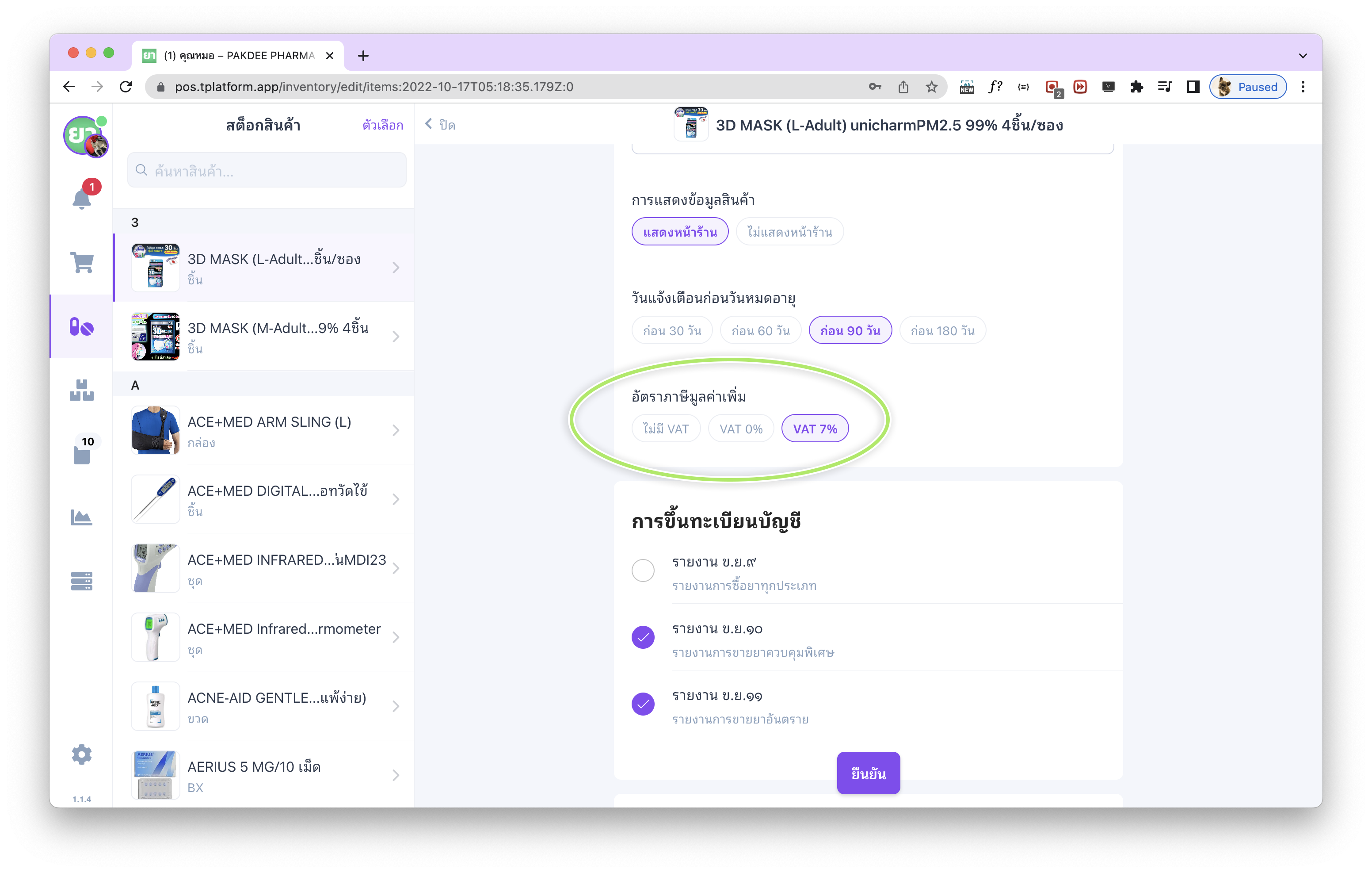
นอกจากการตั้งค่าภาษีมูลค่าเพิ่มในภาพรวมแล้ว ระบบจัดการร้านขายยาทีฟาร์มยังรองรับการกำหนดอัตรา VAT รายสินค้า เพื่อรองรับสินค้าที่ได้รับการยกเว้นภาษี หรือสินค้าที่ต้องยื่นแบบภาษีแต่มีมูลค่าภาษีเป็น 0 ได้เช่นกัน โดยสามารถตั้งค่าได้จาก
- ไปที่เมนู “สต็อกสินค้า” จากแถบเมนูด้านซ้าย
- เลือกสินค้าที่ต้องการตั้งค่าภาษี
- กดปุ่ม “แก้ไขข้อมูล” เพื่อเปิดแบบฟอร์มข้อมูลทั่วไปของสินค้า
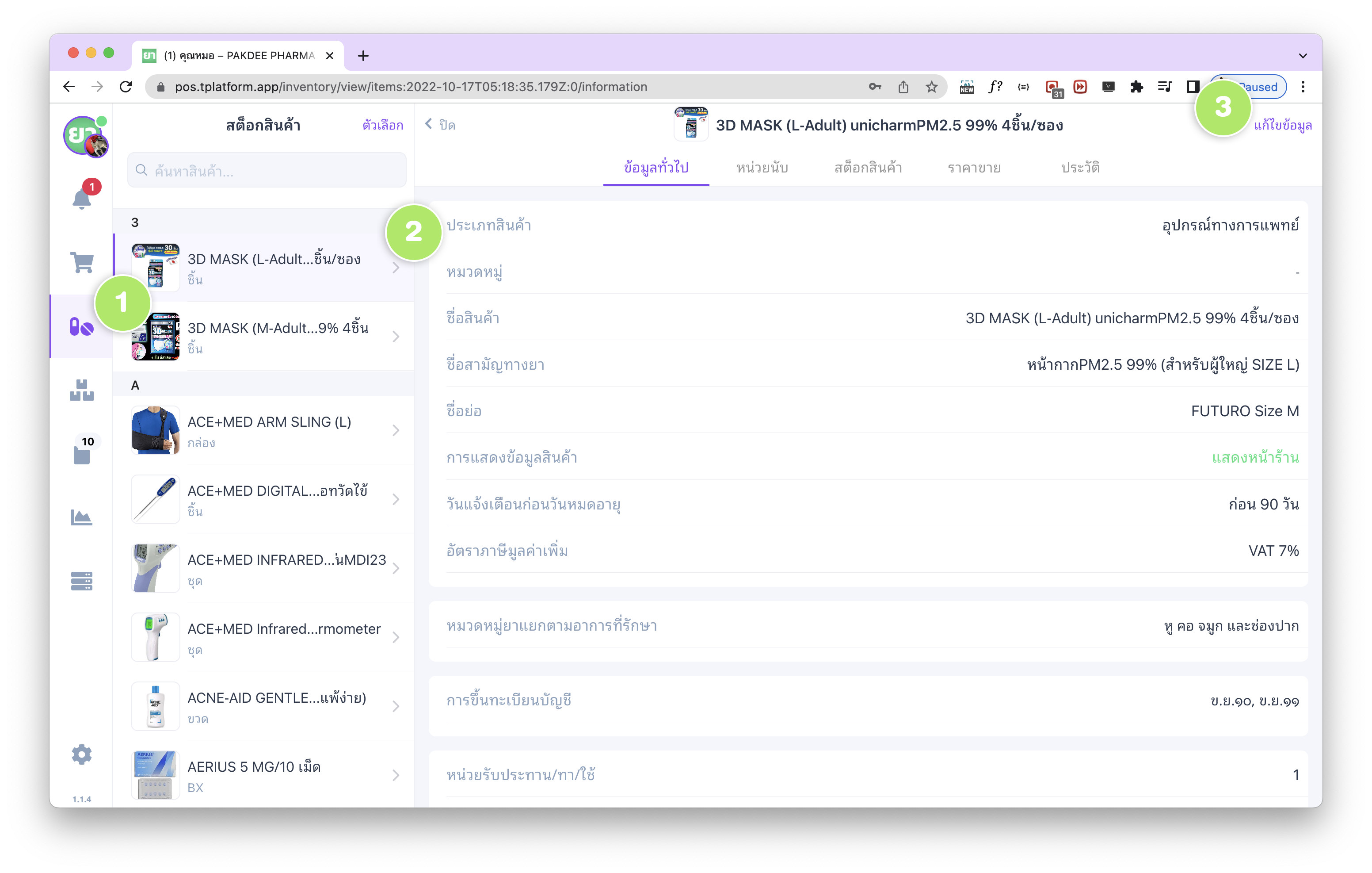
ในส่วนของแบบฟอร์ม “ข้อมูลทั่วไป” จะมีหัวข้อ “อัตราภาษีมูลค่าเพิ่ม” ให้ร้านค้าสามารถเลือกอัตรา VAT สำหรับสินค้ารายตัวได้ โดยมีตัวเลือกดังนี้
- ไม่มี VAT – สินค้าที่ได้รับการยกเว้นภาษีมูลค่าเพิ่ม
- VAT 0% – สินค้าที่ต้องยื่นแบบภาษี แต่มีมูลค่าภาษีเป็น 0 (Zero VAT)
- VAT 7% – สินค้าที่ต้องเสียภาษีมูลค่าเพิ่มตามอัตราปกติ
Configuring VAT 7% in tPHARM POS for Pharmacy Management
If your pharmacy is registered for value-added tax (VAT 7%), tPHARM POS allows you to show detailed VAT information at the bottom of customer receipts. You can configure VAT handling in two ways:
- Including VAT (VAT-in) – Product prices shown already include VAT 7%.
- Excluding VAT (VAT-out) – Product prices shown do not yet include VAT 7%, and VAT will be added on top.
These two modes use different calculation methods and will affect how item prices, VAT amounts, and grand totals are displayed in the POS screen and on printed receipts.
How to Access VAT 7% and Rounding Settings
To configure VAT 7% and decimal rounding in tPHARM POS, follow these steps:
- Open the “Settings” menu (gear icon at the bottom-left corner).
- Select “Calculation Settings – VAT(7%), Decimal Position”.
- Choose the VAT mode (Including VAT or Excluding VAT).
- Configure decimal rounding rules according to Thai currency satang rules (rounding rules are further explained here: Thai rounding rules (Satang)).
Example: Including VAT (VAT-in)
When you select “Including VAT / VAT-in – Product prices already include VAT 7%”, the POS assumes that the selling price shown to the customer is the final price, VAT included. For example:
- Selling price (VAT included) = 100 THB
- Formula to extract VAT:
VAT = Price - (Price / 1.07) - Substitute: 100 – (100 / 1.07) = 6.5421 THB (before rounding)
- Net price before VAT ≈ 93.458 THB
tPHARM will then apply your rounding settings to both the VAT amount and the net amount before VAT, and display them in the cart summary on the right side as well as in the VAT summary at the bottom of the printed receipt.
Example: Excluding VAT (VAT-out)
When you select “Excluding VAT / VAT-out – Product prices do not include VAT 7%”, the POS will calculate VAT on top of the selling price. For example:
- Selling price (excluding VAT) = 100 THB
- VAT formula:
VAT = Price * 0.07 - VAT 7% = 100 * 0.07 = 7 THB
- Grand total (including VAT) = 100 + 7 = 107 THB
On the POS screen and receipt, tPHARM will show the net price, VAT amount, and grand total clearly separated, making it easier for both staff and customers to understand the tax breakdown.
Per-Item VAT Configuration (No VAT, VAT 0%, VAT 7%)
tPHARM also supports configuring VAT rates on a per-item basis. This is important for pharmacies where some items may be VAT-exempt or zero-rated (VAT 0%) while others must be charged VAT 7%. To configure VAT per item:
- Open the “Stock” menu from the left-hand sidebar.
- Select the product you want to configure.
- Click “Edit” to open the general information form for that product.
In the “General Information” section, you will find the field “VAT rate”. You can choose:
- No VAT – Items that are fully VAT-exempt.
- VAT 0% – Items that must be reported for tax purposes but have a 0% VAT rate.
- VAT 7% – Items that are subject to the standard 7% VAT rate.