
บัญชีรายงาน ข.ย. สำหรับร้านขายยา คืออะไร และสำคัญอย่างไร
สิ่งที่ขาดไม่ได้สำหรับการเปิดร้านขายยา ก็คือบัญชีรายงานการซื้อ–ขายยา หรือรายงาน ข.ย. ต่าง ๆ ซึ่งเป็นเอกสารสำคัญตามกฎหมาย และยังช่วยให้การ จัดการร้านค้า และการ บริหารสต็อกสินค้า ทำได้อย่างเป็นระบบ โดยรายงานหลัก ๆ ได้แก่
- บัญชีการซื้อยา หรือ รายงาน ข.ย.9
- บัญชีการขายยาควบคุมพิเศษ หรือ รายงาน ข.ย.10
- บัญชีการขายยาอันตราย หรือ รายงาน ข.ย.11
ระบบร้านยาทีฟาร์มกับการบันทึกรายงาน ข.ย. แบบอัตโนมัติ
ระบบจัดการบริหารร้านขายยา tPHARM ถูกออกแบบมาเพื่อช่วยร้านขายยาให้ทำงานง่ายขึ้น เหมาะกับผู้ที่ต้องการระบบ online pos, โปรแกรมร้านขายยา, หรือ pos free ที่สามารถบันทึกข้อมูลรายงาน ข.ย. ต่าง ๆ แบบอัตโนมัติ
ตัวอย่างเช่น เมื่อมีการซื้อยา หรือสินค้าผ่านใบรับสินค้าของระบบ และมีการนำสินค้าเข้าคลัง ระบบจะดำเนินการบันทึกข้อมูลสินค้าลงในรายงาน ข.ย.9 ของเดือนที่นำเข้านั้นโดยอัตโนมัติ ทำให้การ บริหารสต็อกสินค้า ง่ายขึ้น และลดโอกาสผิดพลาดจากการเขียนมือ
ขั้นตอนตั้งค่าสินค้าให้บันทึกลงรายงาน ข.ย.
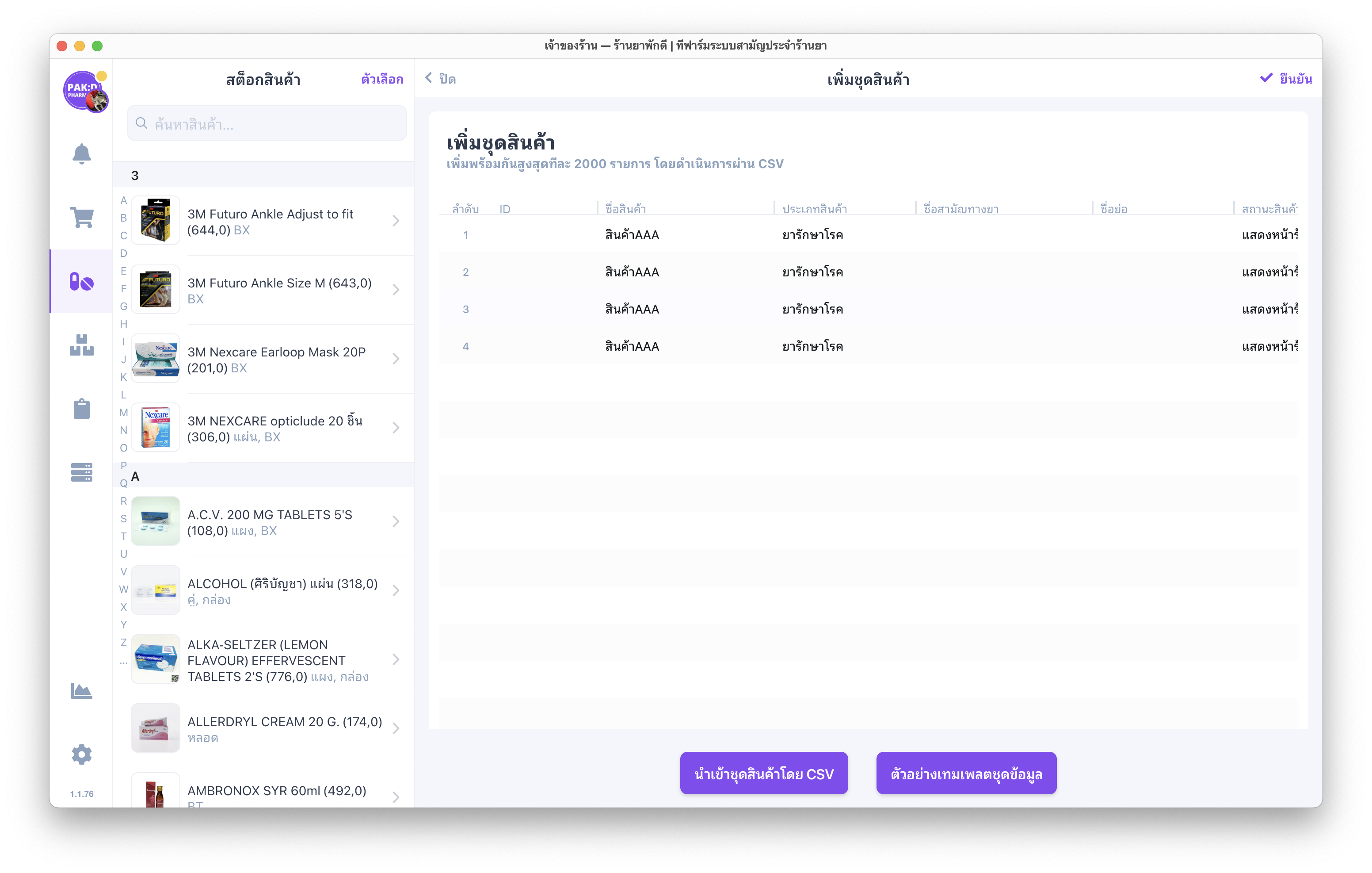
ก่อนที่จะเริ่มบันทึกข้อมูลลงรายงาน ข.ย. สิ่งแรกที่ร้านค้าต้องทำ คือ ตรวจสอบให้แน่ใจว่าสินค้าในร้านได้ถูกตั้งค่าให้บันทึกข้อมูลลงรายงาน ข.ย. เรียบร้อยแล้ว หากยังไม่ได้ตั้งค่า สามารถตั้งค่าได้ดังนี้
- (1) ไปที่แถบ สต็อกสินค้า ในเมนูด้านซ้าย
- (2) เลือกสินค้าที่ต้องการตั้งค่ารายงาน ข.ย. จากรายการสินค้า
- (3) กดปุ่ม “แก้ไขข้อมูล” เพื่อเปิดหน้าตั้งค่ารายงาน ข.ย.

การขึ้นทะเบียนบัญชี ข.ย. ให้กับสินค้า
เลื่อนหน้าจอเพื่อค้นหาแบบฟอร์ม “การขึ้นทะเบียนบัญชี” จากนั้นจะเห็นประเภทของรายงาน ข.ย. ต่าง ๆ ที่ระบบรองรับ ให้เลือกรายงานที่ต้องการบันทึกข้อมูลสำหรับสินค้าแต่ละรายการ
หลังจากเลือกรายงานเสร็จเรียบร้อยแล้ว ร้านค้าต้องกดปุ่ม “ยืนยัน” ด้านล่างเสมอ เพื่อบันทึกข้อมูลการตั้งค่าบัญชี ข.ย. ให้กับสินค้า ถือเป็นขั้นตอนสำคัญก่อนที่ระบบจะสามารถบันทึกข้อมูลให้แบบอัตโนมัติ


การทำงานของรายงาน ข.ย.9 – รายงานการซื้อยา
ในส่วนต่อไป จะอธิบายการทำงานของระบบ และขั้นตอนการสร้างรายงาน ข.ย. ทั้ง 3 เริ่มจาก รายงาน ข.ย.9 ซึ่งเป็นรายงานการซื้อยาของร้านค้า โดยรายงาน ข.ย.9 จะถูกสร้างแบบอัตโนมัติหลังจากที่ร้านค้ากด “รับสินค้าเข้าคลังสินค้า” จากใบรับสินค้า (Goods Receipt) เท่านั้น
วิธีการซื้อยา หรือสินค้าสำหรับนำเข้าสต็อกในร้าน สามารถทำได้โดยการเพิ่ม ใบสั่งซื้อสินค้า (Purchase Order) ก่อน (สามารถดูวิธีการเพิ่มใบสั่งซื้อสินค้าได้ที่ลิงก์นี้) หลังจากเพิ่มใบสั่งซื้อสินค้าเรียบร้อยแล้ว ร้านค้าสามารถสร้าง ใบรับสินค้า (Goods Receipt) ต่อจากใบสั่งซื้อได้ทันที (สามารถดูวิธีการเพิ่มใบรับสินค้าได้ที่ลิงก์นี้)

การทำงานของรายงาน ข.ย.10 และ ข.ย.11 – รายงานการขายยา
สำหรับรายงาน หรือบัญชี ข.ย.10 และ ข.ย.11 จะเป็นส่วนของการขายยา ผ่านระบบหน้าร้าน หรือ POS / Point of Sale ของทีฟาร์ม ซึ่งออกแบบมาสำหรับ ระบบร้านยา โดยเฉพาะ
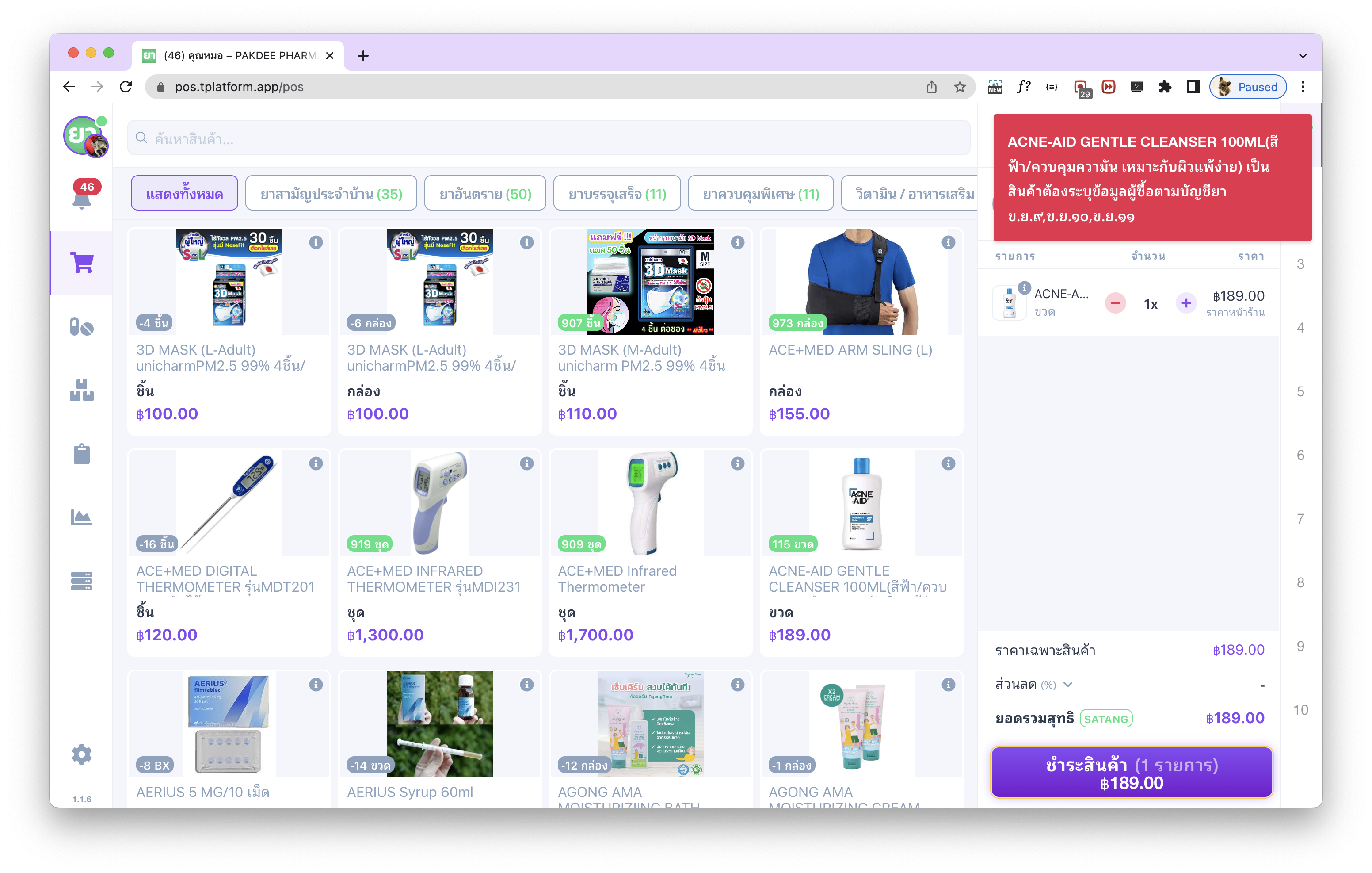
เมื่อมีการขายยาผ่านระบบ online pos ของทีฟาร์ม ระบบจะเด้งแจ้งเตือนให้ผู้ขายดำเนินการบันทึกข้อมูลลูกค้า (สามารถดูวิธีการเพิ่มลูกค้าใหม่ได้ที่ลิงก์นี้) เพื่อเก็บเป็นหลักฐานการขายยาควบคุมพิเศษตาม ข.ย.10 และยาอันตรายตามบัญชี ข.ย.11
การเรียกดูรายงาน ข.ย.10 และ ข.ย.11
หลังจากลูกค้าดำเนินการซื้อยา และร้านค้าบันทึกการขายเรียบร้อยแล้ว ร้านค้าสามารถเรียกดูรายงาน ข.ย.10 และ ข.ย.11 ได้จาก (1) เมนู ฐานข้อมูล ทางแถบด้านซ้าย ซึ่งระบบจะสร้างรายงานแยกตามเดือนที่มีการจำหน่ายสินค้าออกจากระบบ จากนั้น (2) เลือกดูรายงาน ข.ย.10 หรือ ข.ย.11 ตามต้องการ

Pharmacy Regulatory Drug Reports (Kho.Yor. 9, 10, 11) – English Version
For a licensed pharmacy, regulatory drug reports are essential. In Thailand, pharmacies are required to maintain specific purchase and sales records known as Kho.Yor. reports. With tPHARM, an online POS and pharmacy management system, these reports can be generated and maintained automatically, helping pharmacy owners manage their store and control inventory more efficiently.
The main required reports are:
- Drug Purchase Register – Report Kho.Yor. 9
- Special Controlled Drug Sales Register – Report Kho.Yor. 10
- Dangerous Drug Sales Register – Report Kho.Yor. 11
Automatic Kho.Yor. Logging in tPHARM
tPHARM is designed as a program for pharmacy stores and can act as a pos free-style solution for smaller shops. When you record purchases via Goods Receipts and import products into stock, the system automatically writes the relevant entries into the Kho.Yor. 9 report for the respective month. This reduces manual work and increases compliance accuracy.
Configuring Products for Kho.Yor. Reporting
Before automatic reporting can take place, each product must be configured to be included in the appropriate Kho.Yor. report:
- Open the Stock menu on the left sidebar.
- Select the product you want to configure.
- Click “Edit” to open the product settings and enable Kho.Yor. reporting.
In the Registration / Reporting Section you will see the supported Kho.Yor. report types. Select the appropriate ones, then click “Confirm” to save. This prepares the system to log entries automatically whenever stock movements occur.
Kho.Yor. 9 – Drug Purchase Report
Kho.Yor. 9 is the monthly drug purchase register. In tPHARM, this report is populated automatically when you:
- Create a Purchase Order (PO).
- Create a Goods Receipt from that PO.
- Import goods into stock via the Goods Receipt screen.
Related guides:
- How to create a Purchase Order – see this guide
- How to create a Goods Receipt – see this guide
Kho.Yor. 10 & 11 – Controlled and Dangerous Drug Sales
Kho.Yor. 10 and 11 are sales registers for special controlled drugs and dangerous drugs. In tPHARM, these reports are linked directly to the front-end POS (Point of Sale) screen, making it ideal as a dedicated pharmacy POS and online POS solution.
When a sale involving controlled or dangerous drugs is made, the system prompts the cashier to select or add a customer record (see how to add a new customer here). This information is then used to build the relevant Kho.Yor. 10 and 11 entries.
Viewing Kho.Yor. 10 and 11 Reports
After sales have been recorded, you can view the monthly Kho.Yor. 10 and 11 reports by:
- Opening the Database menu on the left.
- Selecting the desired report: Kho.Yor. 10 or Kho.Yor. 11.
The system groups data by month automatically, making it easy to export or print for regulatory submission.