คู่มือคีย์ลัดในระบบขายหน้าร้าน (POS) ของ tPHARM — เพิ่มความเร็วในการขายแบบไม่ต้องจับเมาส์
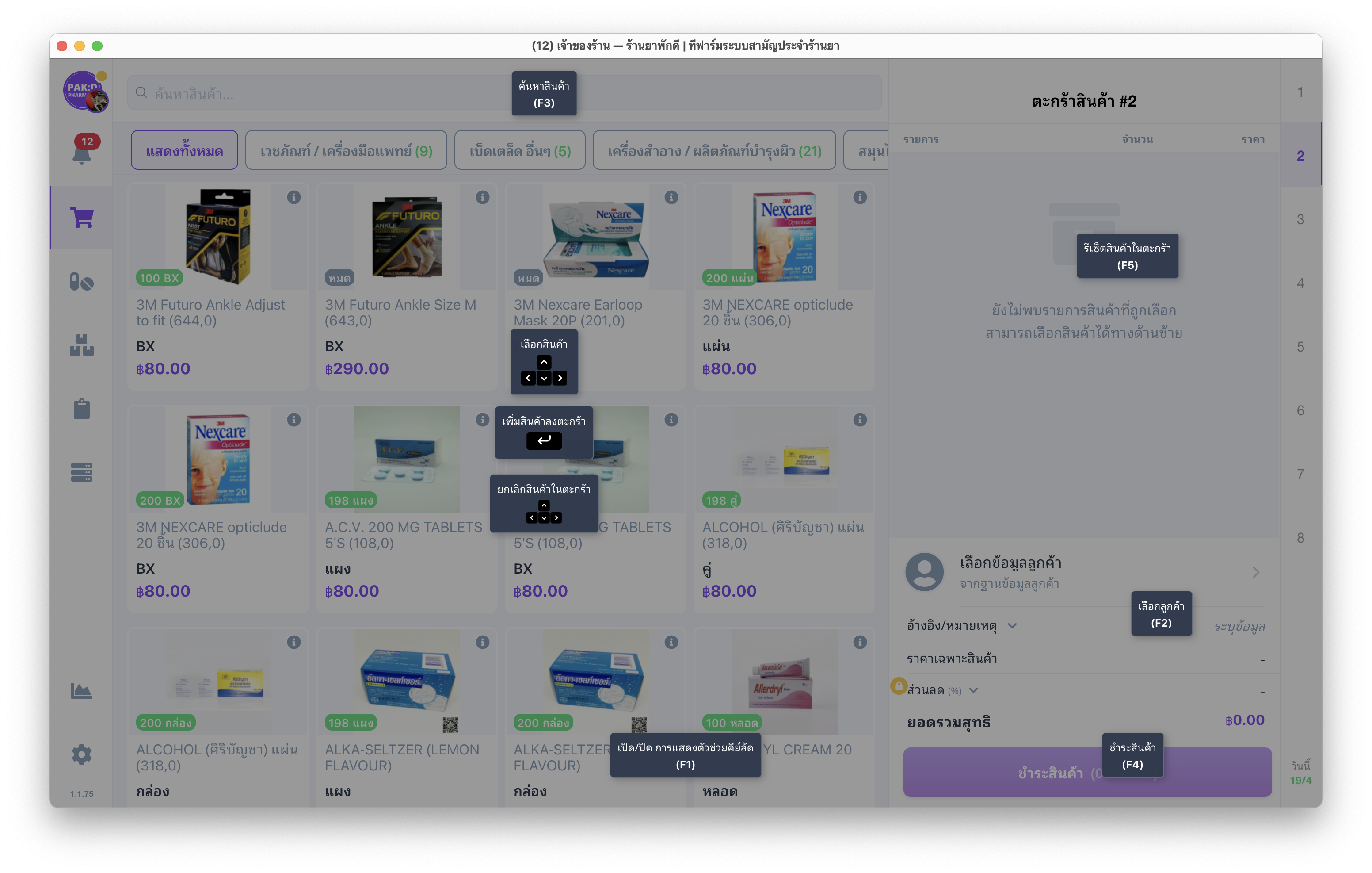
เพื่อให้การขายเป็นไปอย่างรวดเร็วและต่อเนื่อง โดยไม่ต้องสลับจับเมาส์และคีย์บอร์ด ระบบขายหน้าร้านของ tPHARM POS รองรับคีย์ลัดที่ช่วยให้เพิ่มสินค้า, เลือกลูกค้า และชำระเงินได้แบบมืออาชีพ เพียงกดปุ่ม F1 เพื่อเปิดหน้าต่างแสดงคีย์ลัดทั้งหมด ดังภาพด้านล่าง
คีย์ลัด POS ระบบขายยา
รายการคีย์ลัดที่รองรับในระบบ tPHARM POS
F1 — เปิด/ปิด หน้าต่างแสดงคีย์ลัดทั้งหมด
F2 — เปิด/ปิด แถบเลือกลูกค้า
F3 — โฟกัสช่องค้นหาสินค้า เพื่อพิมพ์ชื่อสินค้า, ชื่อยา หรือยิงบาร์โค้ด
F4 — ดำเนินการชำระสินค้าในตะกร้า
F5 — รีเซ็ตตะกร้าสินค้า / เริ่มต้นขายใหม่
Arrow Key (↑ ↓ ← →) — ใช้เลือกสินค้า เพิ่ม–ลดจำนวน หรือเลื่อนรายการ
↵ Enter — เพิ่มสินค้าที่เลือกลงตะกร้า
⌫ Backspace — ลบสินค้าที่เลือกออกจากตะกร้า
ตัวอย่างการค้นหาและเพิ่มสินค้าอย่างรวดเร็ว
เมื่ออยู่ในหน้าขาย POS สามารถกด F3 เพื่อให้ระบบโฟกัสช่องค้นหาสินค้า จากนั้นพิมพ์ชื่อสินค้า เมื่อระบบแสดงผลรายการสินค้าที่ค้นหาได้ ให้กด Arrow Down ↓ จำนวน 2 ครั้ง เพื่อเริ่มต้นเลือกสินค้าที่พบ (กรอบรายการสินค้าเปลี่ยนเป็นสีเขียว)
จากนั้นสามารถใช้ Arrow Key เลือกสินค้าที่ต้องการ และกด ↵ Enter เพื่อเพิ่มลงตะกร้า
หากกด ↵ Enter 4 ครั้ง ระบบจะเพิ่มสินค้านั้นจำนวน 4 ชิ้นทันที
การชำระเงินผ่านคีย์ลัด
หลังเพิ่มสินค้าครบตามจำนวน สามารถกด F4 เพื่อเข้าสู่หน้าชำระเงิน โดยสามารถใช้คีย์ลัดดังนี้:
Arrow Up / Down — เลือกช่องทางชำระเงิน (เงินสด, บัตรเครดิต, พร้อมเพย์)
0–9 หรือ Numpad — ใส่ยอดเงินที่รับจากลูกค้า
↵ Enter — ชำระเงินทันที
หลังชำระสามารถกด ↵ Enter อีกครั้งเพื่อกลับสู่หน้า POS และเริ่มขายรายการต่อไปได้ทันที
ตัวอย่างการเลือกลูกค้าผ่านคีย์ลัด
ในหน้าขาย POS สามารถกด F2 เพื่อเปิดแถบเลือกลูกค้า จากนั้นระบบจะโฟกัสช่องค้นหาทันที สามารถพิมพ์ชื่อลูกค้า, เบอร์โทร หรือคำค้นอื่นๆ ได้เลย
เมื่อระบบค้นหารายชื่อเสร็จ ให้กด Arrow Down ↓ เพื่อเลือก และกด ↵ Enter เพื่อเลือกลูกค้า
Shortcut Keys for tPHARM POS — Sell Faster Without Touching Your Mouse
To improve sales efficiency and reduce the need to switch between mouse and keyboard, tPHARM POS supports powerful shortcut keys that let you search products, add items, select customers, and complete payments instantly. Press F1 anytime to view all available shortcuts.
Available Shortcut Keys
F1 — Toggle shortcut help menu
F2 — Open/close customer selector
F3 — Focus product search bar (type name or scan barcode)
F4 — Proceed to checkout
F5 — Reset cart / Start a new sale
Arrow Keys — Navigate and adjust item selection
↵ Enter — Add selected product to cart
⌫ Backspace — Remove selected product from cart
Quick Example: Searching & Adding Products
Press F3 to focus on the search bar, type your keyword, then press Arrow Down (twice) to select the first matched product. Use Arrow Keys to change selection, and press Enter to add items to the cart.
Pressing Enter four times will add four units instantly.
Checkout with Shortcuts
Press F4 to open the payment screen. Then:
Arrow Up / Down — Select payment method (Cash, Credit Card, PromptPay)
0–9 / Numpad — Enter amount received
Enter — Confirm payment
Press Enter again to return to the POS screen and start a new sale.
Quick Example: Selecting a Customer
Press F2 to open the customer selector, type a name or phone number, then press Arrow Down to highlight and Enter to select.