
รายงานประวัติสินค้าในระบบร้านยา tPHARM
สิ่งสำคัญของการใช้งาน ระบบร้านยา และ โปรแกรมร้านขายยา อย่าง tPHARM คือการเก็บบันทึกข้อมูลต่าง ๆ เช่น การขาย การนำเข้าสต็อก การปรับสต็อกสินค้า หรือการแก้ไขข้อมูลต่าง ๆ ของสินค้าในระบบ เมื่อมีการบันทึกข้อมูลเหล่านี้แล้ว หากภายหลังเกิดปัญหาที่หน้าร้าน เช่น สต็อกสินค้าหาย ต้องการตรวจสอบความเคลื่อนไหวย้อนหลัง หรือใช้เพื่อ บริหารสต็อกสินค้า อย่างเป็นระบบ การพิมพ์รายงานประวัติสินค้าเพื่อตรวจสอบความถูกต้องจึงเป็นฟังก์ชันที่สำคัญมาก
ในระบบจัดการร้านค้าของทีฟาร์ม สามารถตรวจสอบประวัติสินค้าได้จาก 2 ช่องทางหลัก ดังนี้
- จากประวัติสินค้า – เรียกดูผ่านระบบได้ทันที แบบออนไลน์ (online POS)
- พิมพ์รายงานประวัติสินค้า – เรียกดูรายงานในรูปแบบไฟล์ PDF (ใช้งานได้เฉพาะลูกค้าที่ใช้แพ็กเกจ Standard)
ดูประวัติสินค้าผ่านหน้าสต็อกสินค้า (เรียกดูทันทีในระบบ)
ร้านค้าสามารถเรียกดูประวัติสินค้าได้ทันทีจากหน้า สต็อกสินค้า ซึ่งช่วยให้เจ้าของร้านและพนักงานสามารถ จัดการร้านค้า และตรวจสอบความเคลื่อนไหวของสินค้าได้อย่างรวดเร็วในระบบร้านยา tPHARM ดังขั้นตอนต่อไปนี้
ไปที่แถบ (1) เมนูสต็อกสินค้า ด้านซ้ายมือ (2) เลือกสินค้าที่ต้องการเรียกดูประวัติ และ (3) เลือกแถบ “ประวัติ” จากแท็บด้านบนของหน้ารายละเอียดสินค้า
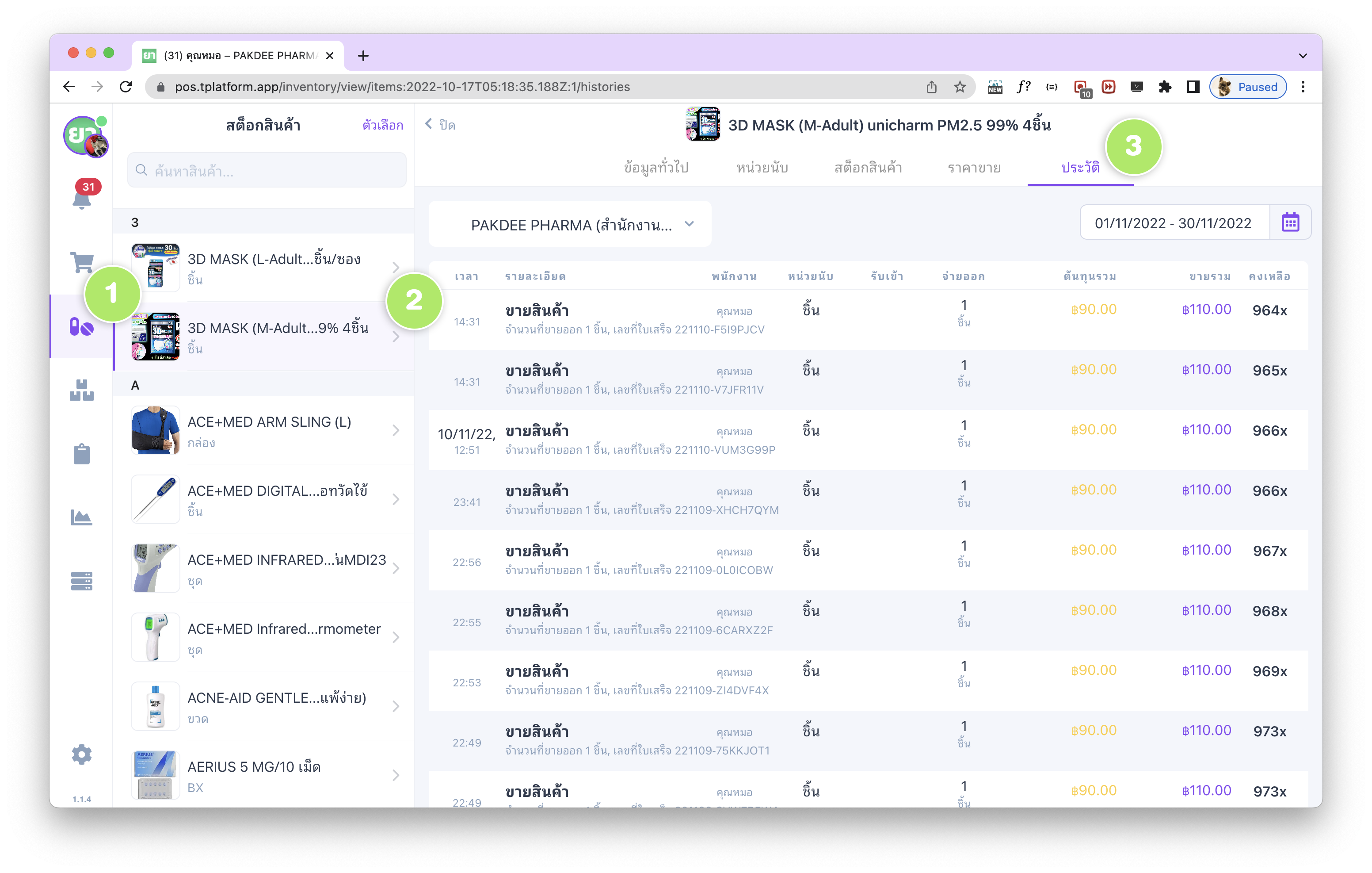
ในหน้าประวัติสินค้า ร้านค้าสามารถระบุช่วง วัน/เดือน/ปี ที่ต้องการเรียกดู (เฉพาะลูกค้าที่ใช้แพ็กเกจ Standard) โดยระบบจะแสดงรายละเอียดที่เกี่ยวข้องกับสินค้าและการบริหารสต็อกสินค้า ดังนี้
- เวลา – วันและเวลาที่มีการบันทึก หรือเกิดเหตุการณ์นั้น ๆ
- รายละเอียด – แสดงรายละเอียดของเหตุการณ์ที่เกิดกับสินค้า เช่น การขาย การรับเข้า หรือการปรับสต็อก
- พนักงาน – แสดงชื่อพนักงานที่ทำรายการ (กรณีระบบมีการใช้งานหลายผู้ใช้)
- หน่วยนับ – แสดงหน่วยนับของสินค้ารายการนั้น (กรณีสินค้ามีหลายหน่วยนับ)
- รับเข้า – แสดงจำนวนที่รับเข้าจากสต็อกสินค้า หรือจากใบรับสินค้า (Goods Receipt) – วิธีรับเข้าสต็อกสินค้าโดยใบรับสินค้า
- จ่ายออก – แสดงจำนวนที่มีการจำหน่าย หรือขายออกผ่านระบบหน้าร้าน POS
- ต้นทุนรวม – แสดงต้นทุนรวมจากการขายในแต่ละรายการ (ต้นทุนต่อหน่วย × จำนวนจ่ายออก) ซึ่งร้านค้าสามารถระบุต้นทุนได้จากแถบหน่วยนับ หรือสต็อกสินค้า
- ขายรวม – แสดงยอดขายรวมของสินค้านั้น (ราคาขายต่อหน่วย × จำนวนจ่ายออก)
พิมพ์รายงานประวัติสินค้าเป็นไฟล์ PDF (Standard Package)
สำหรับร้านค้าที่ใช้งาน แพ็กเกจ Standard ของ tPHARM ซึ่งเหมาะกับการ จัดการร้านค้า และ บริหารสต็อกสินค้า แบบมืออาชีพ ระบบจะมีฟังก์ชัน “ITEM REPORT / พิมพ์รายงานประวัติสินค้า” เพื่อสั่งพิมพ์รายงานประวัติสินค้าออกมาในรูปแบบไฟล์ PDF ได้
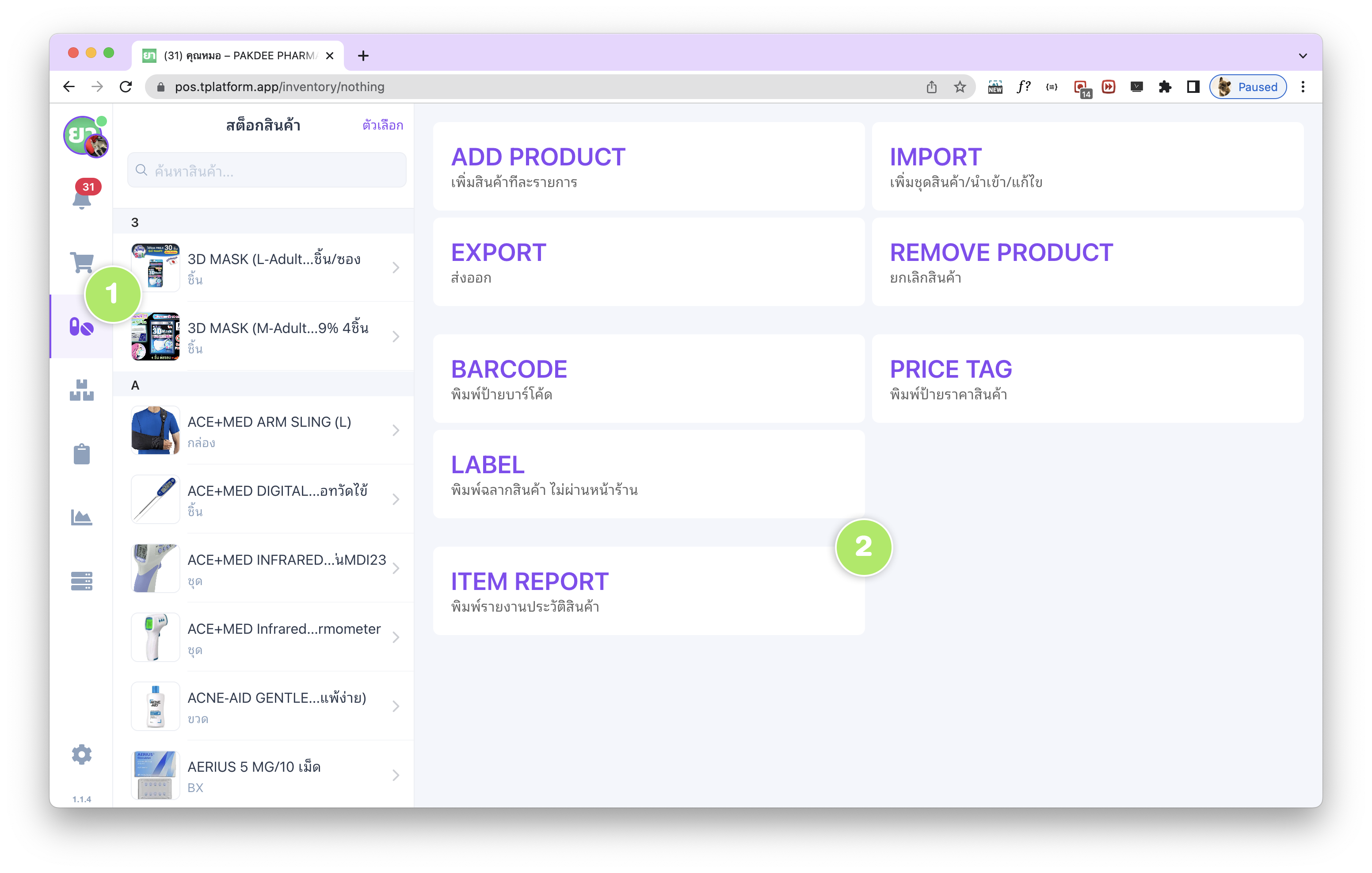
โดยสามารถเข้าใช้งานได้จาก (1) เมนู สต็อกสินค้า และเลือกหัวข้อ (2) “ITEM REPORT / พิมพ์รายงานประวัติสินค้า”
ร้านค้าจะต้องเลือกสินค้าที่ต้องการพิมพ์รายงานประวัติ จากรายการ (1) สินค้าด้านซ้าย (สามารถค้นหาสินค้าได้ตามต้องการ) โดยมีเงื่อนไขว่าแต่ละครั้งสามารถเลือกสินค้าเพื่อออกรายงานได้สูงสุด ไม่เกิน 5 รายการ และกำหนด (2) ช่วงวันที่ต้องการ ซึ่งไม่เกิน 31 วัน (ประมาณ 1 เดือน) จากนั้นจึงกด (3) พิมพ์รายงาน ได้ทันที
สำหรับรายงานประวัติสินค้าที่จะพิมพ์ออกมา ร้านค้าสามารถกำหนดประเภทข้อมูลที่จะรวมอยู่ในรายงานได้ ดังนี้
- การขายสินค้า – แสดงประวัติการขายสินค้าผ่านระบบหน้าร้าน POS
- ข้อมูลสินค้า – แสดงประวัติการเพิ่มสินค้าเข้าระบบ และการแก้ไขข้อมูลทั่วไปของสินค้า
- ข้อมูลหน่วยนับ – แสดงประวัติการเพิ่ม แก้ไข หรือยกเลิก/ลบหน่วยนับของสินค้านั้น ๆ
- ข้อมูลราคาขาย – แสดงประวัติการเพิ่ม แก้ไข หรือยกเลิกราคาขายของสินค้า
- ข้อมูลสต็อกสินค้า – แสดงประวัติที่เกี่ยวข้องกับสต็อก เช่น การนำเข้า การจำหน่ายออก หรือการปรับแก้ไขสต็อก
Item History Reports in the tPHARM Pharmacy POS (online POS)
Accurate record-keeping is at the heart of any pharmacy POS software (โปรแกรมร้านขายยา). In tPHARM, every key transaction is recorded – sales, stock receipts, stock adjustments, and item data updates. When something unexpected happens at the pharmacy, such as missing stock, suspected errors at the counter, or when you simply want to audit historical activity, the Item History Report becomes an essential tool for proper inventory control and store management (จัดการร้านค้า และบริหารสต็อกสินค้า).
The tPHARM system, designed as an online POS solution for pharmacies, lets you review item history in two main ways:
- View item history directly on screen – instant access inside the system
- Print item history reports – export as PDF (available for Standard package users)
Viewing Item History On-Screen
You can quickly view item history from the Stock menu, which is useful for day-to-day store management and quick checks at the counter. This feature is integrated directly into the tPHARM pharmacy POS interface.
Go to (1) the Stock menu on the left sidebar, (2) select the product you want to inspect, and then (3) click the “History” tab at the top of the product details panel.
On this screen, you can filter by date range (for Standard package users) and see detailed activity related to the item, including:
- Date & Time – When the transaction or change took place.
- Details – Description of the event, such as sale, stock receipt, or adjustment.
- Staff – Which user performed the action (useful for branch control and staff accountability).
- Unit – The unit used in that transaction (helpful when the item has multiple units like box/strip/tablet).
- Qty In – Quantity received into stock, including from Goods Receipt documents – see how to receive stock via Goods Receipt.
- Qty Out – Quantity deducted due to sales at the POS.
- Total Cost – Total cost of the quantity sold (cost per unit × quantity), based on cost settings from the unit/stock configuration.
- Total Sales – Total revenue for that item (selling price per unit × quantity sold).
Printing Item History Reports (PDF, Standard Package)
For pharmacies that require more advanced reporting and offline documentation, tPHARM’s Standard package adds the ability to generate PDF item history reports. This is especially useful for audits, owner reviews, or exporting data from your online POS for compliance or internal analysis.
To access this feature, go to (1) the Stock menu, then click (2) “ITEM REPORT / พิมพ์รายงานประวัติสินค้า”.
On the report screen, you can:
- Select up to 5 items from the product list on the left (with search support).
- Specify a date range of up to 31 days (around one month).
- Click “Print report” to generate the PDF.
Before printing, you can choose which types of data to include in the report:
- Sales transactions – History of sales made through the POS.
- Item information – Creation and general information changes to the product record.
- Unit information – Add, edit, or delete operations on item units (e.g., box/strip/tablet).
- Selling price information – Add, edit, or remove selling price tiers.
- Stock information – Stock movements such as receipts, issues, and manual adjustments.
With these tools, tPHARM helps pharmacies use a pos free-style approach for basic use (with upgrade options), while still offering professional-level ระบบร้านยา capabilities for those who need deeper reporting and tighter inventory and store management.